
Your profile page is all about you.
It displays your name, picture, when you joined, followers, social media links, etc and lets other users get an idea of who you are.
Hint: Clicking your background image or profile picture allows you to change them. You can also drag your background image to fit better with the icon on the left that appears when you put your mouse on the image.
Under the basic information is a menu to other pages in your profile.
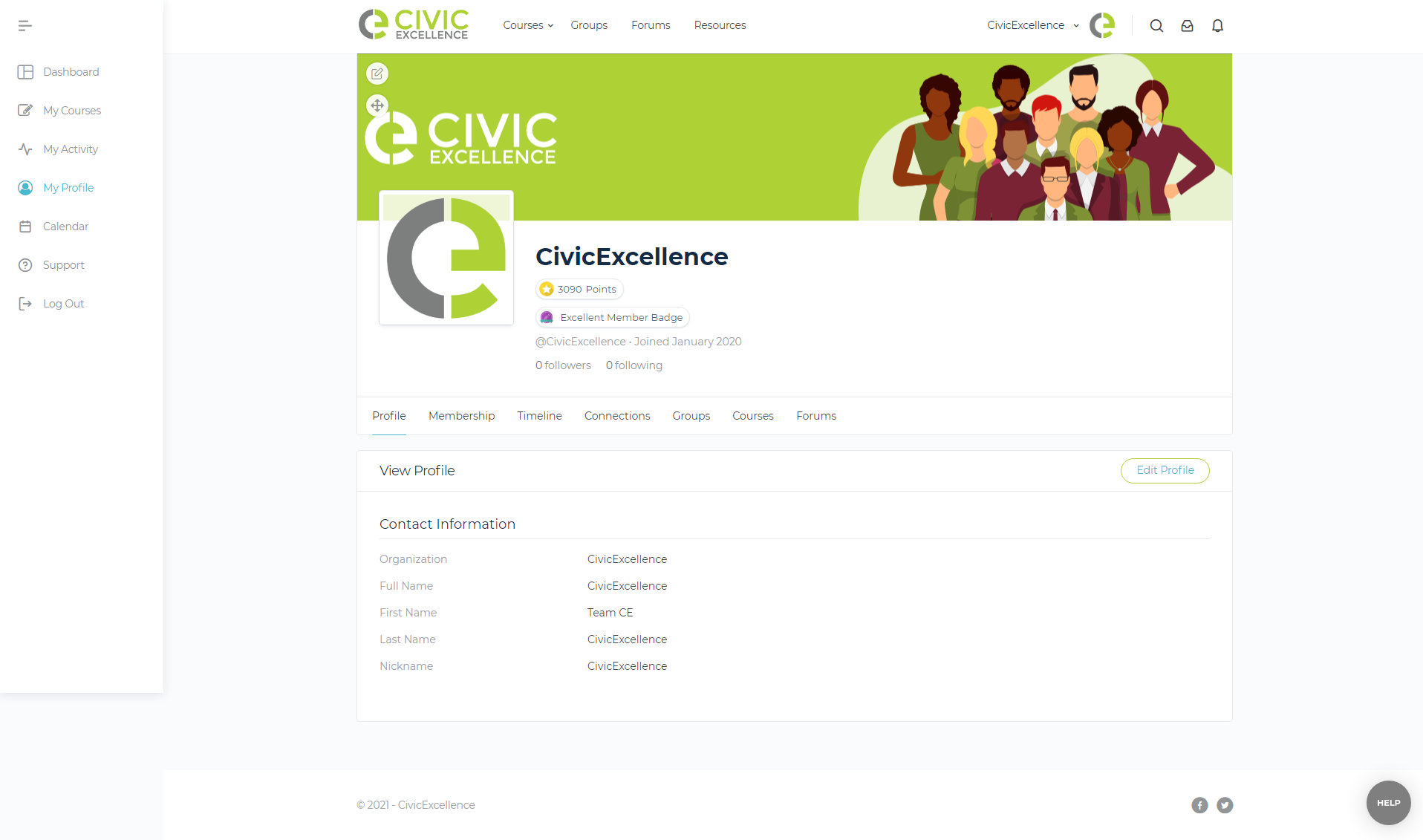
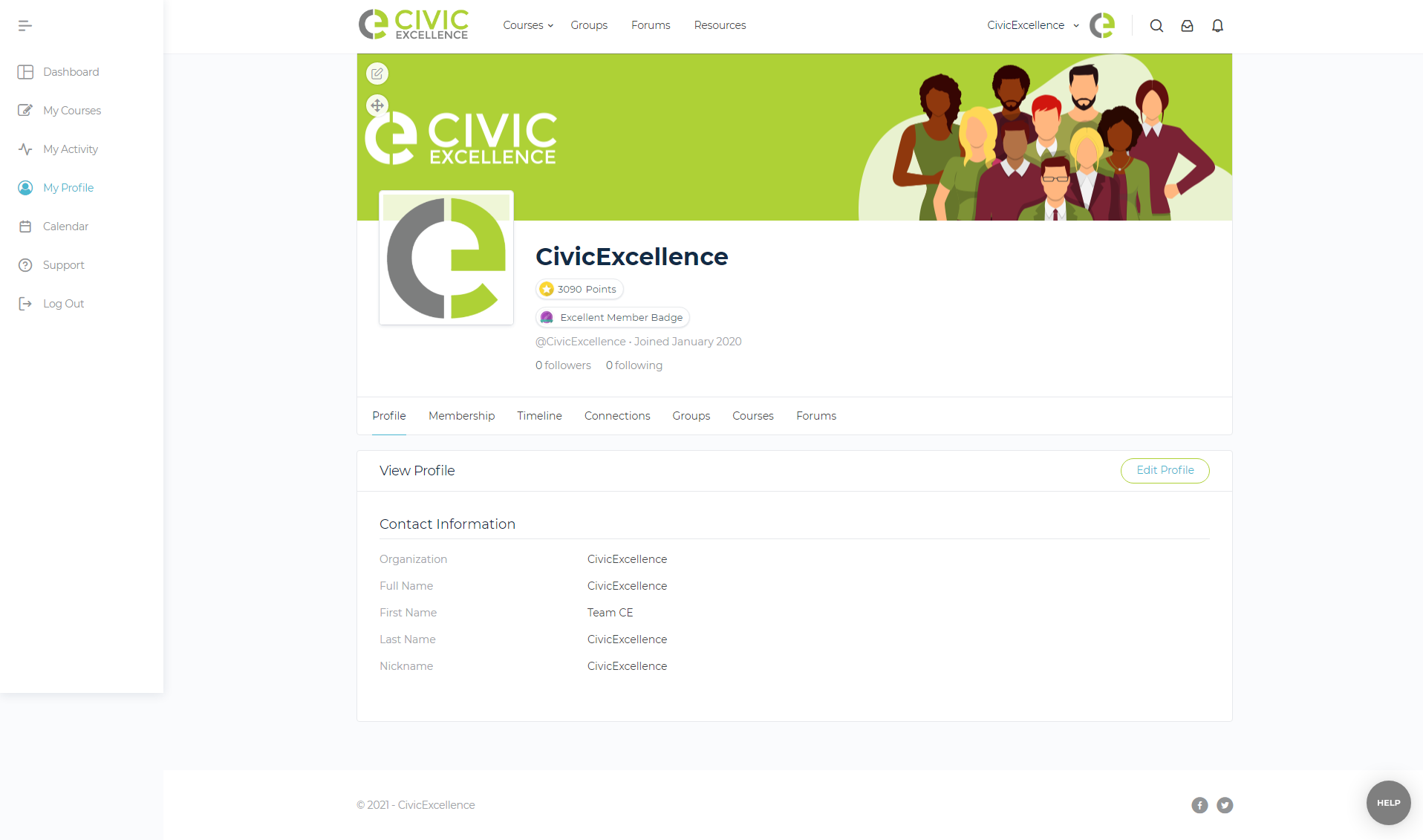
Profile
This is the default tab and shows the information you entered including your username and organization. There is a link to edit your profile in the top-right corner of this panel.
Membership
This tab shows the subscription status of your membership as well as the expiration date and payment information.
Timeline
This tab is where you can access a list of all your activity on the site and share status updates.
Connections
Here you'll find a list of your Connections on the CivicExcellence with quick links to send them messages. (Hint: A green dot by their profile picture indicates they are currently online.) You can also see your contact requests and accept or decline new contacts.
Groups
The Groups tab shows a list of the groups you are currently a member of as well as groups you have been invited to join. You can accept or decline the invitations here.
Course:
The Course tab gives you the list of your available courses as well as the certificates you earned.
Forums
Forums give you quick access to discussions you have started, and replies you have made. You can see the forums and topics you are subscribed to as well.