Getting used to a new platform can be a bit confusing. We totally understand. Here are some basics for getting around CivicExcellence and finding what you need.
Desktop
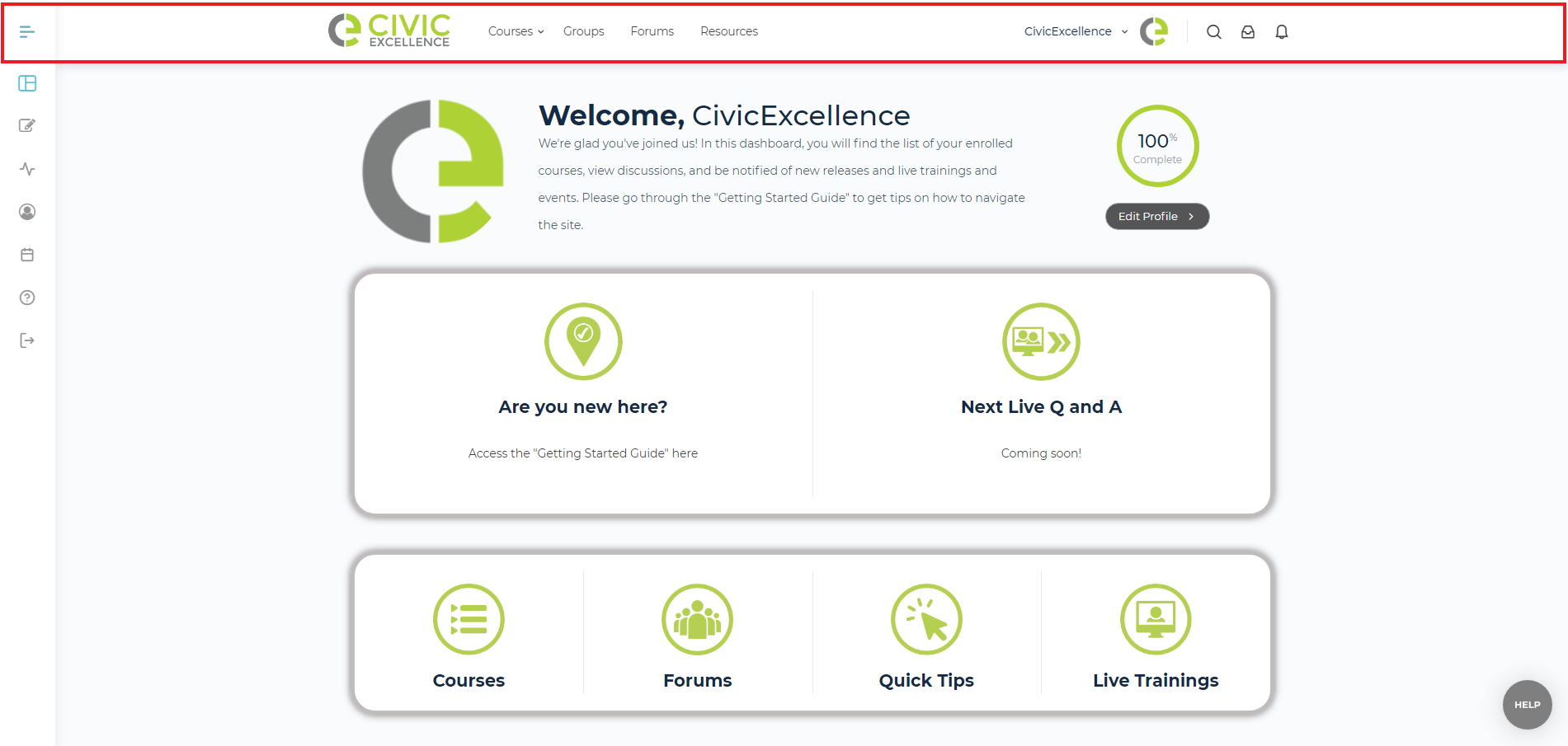
There are two main navigation options when using a desktop computer: the top menu and the side menu.
Top Menu
The top bar of the website has links to the main website sections (Courses, Groups, Forums, and Resources). Hovering over the Courses menu will show the lists of different courses available on the site. (On smaller screens, these menu items may be cut off with a “…”. Clicking the “…” will show the hidden menu items.)
To the right of the top menu, your user name and logo are displayed next to buttons for Search (click to bring up a search box), your mailbox, and notifications. If you have new messages or notifications, a badge number will appear next to the icon. Clicking on your mailbox or notifications will show unread messages/notifications as well as a link to see more.
Clicking on your user name will show options for viewing or editing your profile, changing various account settings, and logging out of CivicExcellence.
Side Menu
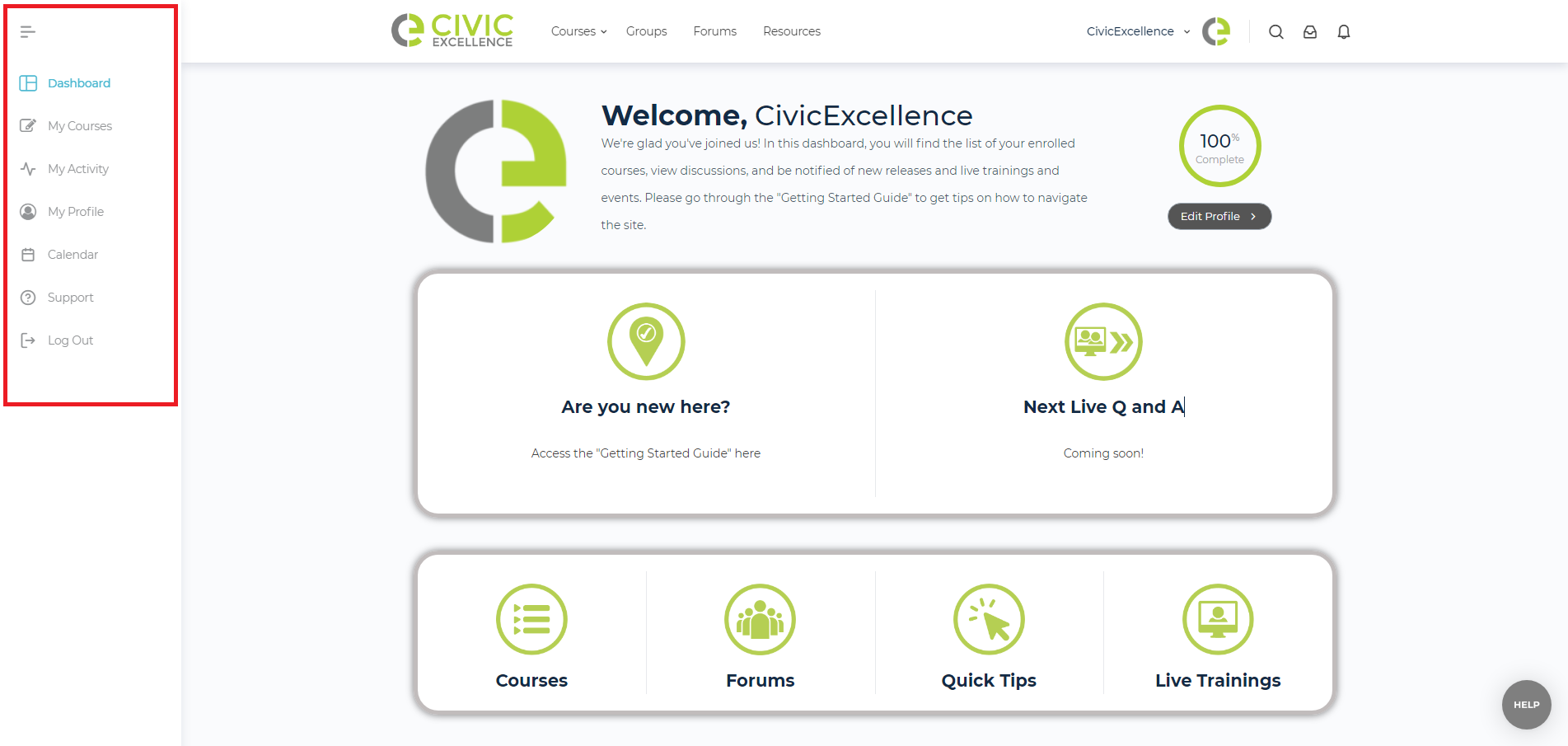
To the left of the screen is the side menu. This menu can be expanded or minimized by clicking on the three bars at the top.
In the upper section, there are links to your Dashboard, Courses, Activities, Groups, Calendar and Support.